![CAT ET 2026A [2026.02]](https://anyepc.com/storage/products/887/887_b2074290-107c-43e1-8196-d512798466fdnwm.webp "CAT ET 2026A [2026.02]")
Caterpillar
Paul Johnson on May 2nd
Introduction
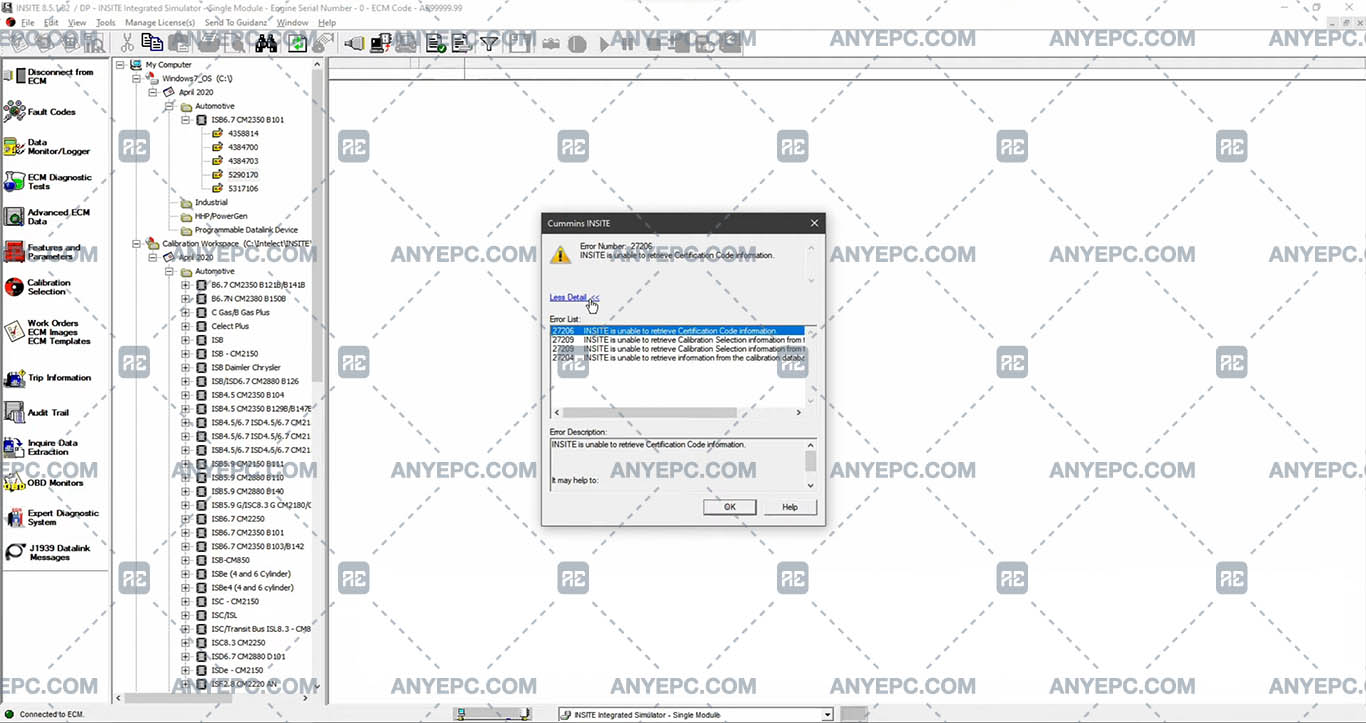
The use of diagnostic and calibration tools in electronic systems is essential to ensure the correct operation of equipment and machinery. Insite is an application widely used in this area, allowing the configuration and adjustment of parameters in the electronic control unit (ECU), however, during its execution, errors may occur that prevent its operation. One of the most common errors is error code 27206 “Insite is unable to retrieve certification code information”, which indicates that the software is unable to retrieve the certification code information needed to proceed with calibration.
Detailed descriptions of common errors
When trying to access a calibration with insite, error 27206 appears, with the message: “Insite is unable to retrieve certification code information”. This indicates that the application is unable to retrieve the necessary data related to the certification code. This problem may be due to the following causes:
1- Unstable or absent network connection: Insite requires connectivity to retrieve certification information from the servers.
2- Invalid license or subscription: The software may not be associated with an active or valid license.
3- System configuration problems: Incorrect client configurations or permission restrictions may block access.
4- Hardware or ECU connection failures: If there are problems with the electronic control unit (ECU), insite will not be able to communicate correctly.
Effects and consequences
The appearance of error 27206 in insite, which prevents the recovery of the certification code, can generate several complications in the software operation and in the calibration processes of the ECU, by not being able to recover the information of the certification code, the software will not be able to make adjustments in the ECU, it can generate delays in the repair and optimization of electronic systems.
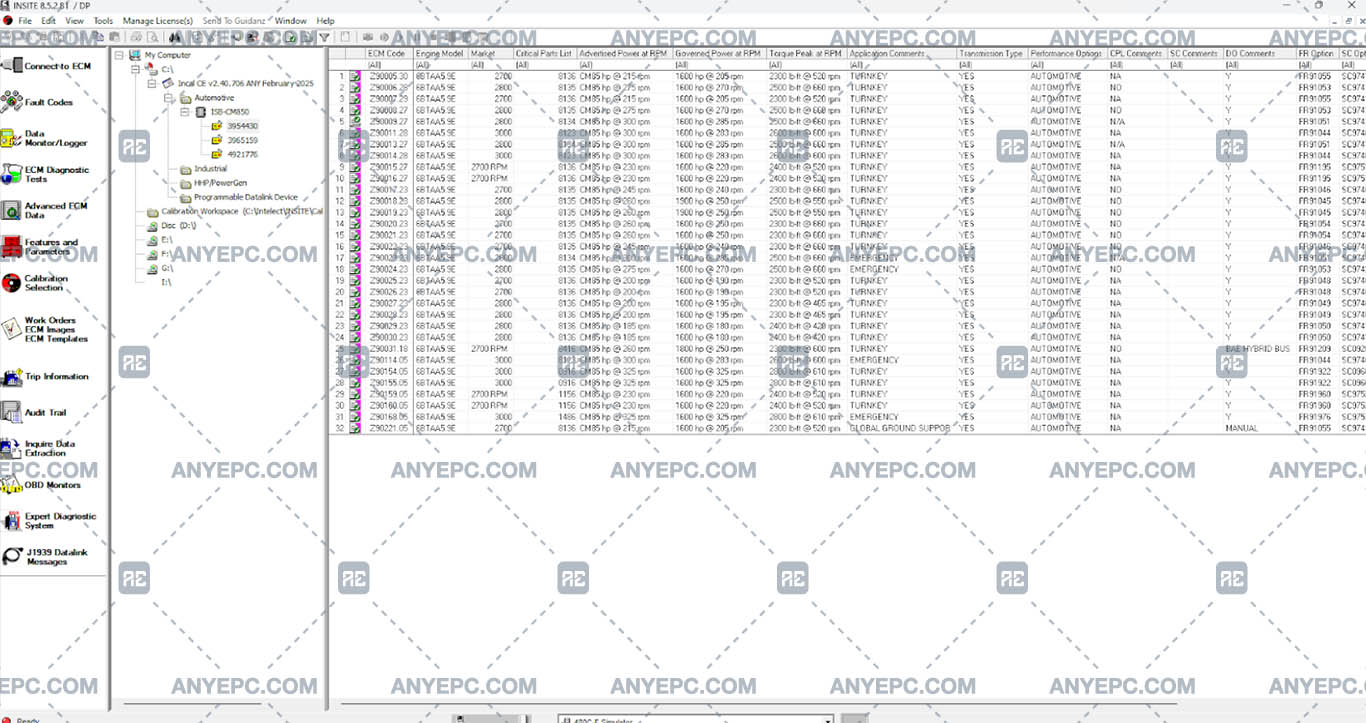
View of the implemented solution

Caterpillar
MORE VERSIONS AVAILABLE
![CNH EST 9.14 [2026.02]](https://anyepc.com/storage/products/1113/1113_cf76bc9f-dad8-47eb-963f-a7aebe172483nwm.webp "CNH EST 9.14 [2026.02]")
Cnh
![SIS CAT 2011B [2021.10]](https://anyepc.com/storage/products/38/38_66423fc1-77ae-4e7f-9854-6781eeebe3b4nwm.webp "SIS CAT 2011B [2021.10]")
Caterpillar
![PERKINS EST 2025C [2025.09]](https://anyepc.com/storage/products/392/392_9a64c72f-9fb8-4578-b257-f864d2be26d1nwm.webp "PERKINS EST 2025C [2025.09]")
Perkins
![ETIM GO FULL PACK 8.18 [2026.01]](https://anyepc.com/storage/products/77/77_75528d89-74f7-4a31-b9e8-66ccbd6a662fnwm.webp "ETIM GO FULL PACK 8.18 [2026.01]")
Cnh
![BOBCAT ENGINE ANALYZER DCU 03.19 [2024.11]](https://anyepc.com/storage/products/592/592_d51acd7a-f932-471d-9411-fbd2e811b538nwm.webp "BOBCAT ENGINE ANALYZER DCU 03.19 [2024.11]")
Bobcat
![BOBCAT ENGINE ANALYZER ECU 02.18 [2024.11]](https://anyepc.com/storage/products/20/20_1d0bf7e4-c057-48c1-a975-2dcd11e11abenwm.webp "BOBCAT ENGINE ANALYZER ECU 02.18 [2024.11]")
Bobcat
![JCB SERVICEMASTER KG UNLOCKED 2 [2020.01]](https://anyepc.com/storage/products/275/275_6ff8e9e2-b1b9-4afb-832d-242555b6ca14nwm.webp "JCB SERVICEMASTER KG UNLOCKED 2 [2020.01]")
Jcb
![TOYOTA INDUSTRIAL EQUIPMENT 2.27 [2020.09]](https://anyepc.com/storage/products/424/424_d810c159-6d34-462f-88de-bf70a9471c7fnwm.webp "TOYOTA INDUSTRIAL EQUIPMENT 2.27 [2020.09]")
Toyota
Caterpillar